Wednesday, July 19, 2017

Unexpected Error When Replying or Forwarding an Email

Recently came across an interesting issue from one of my clients, they were working fine since around 2 years ago with no issues, using Dynamics CRM version 8.1. Suddenly they reported an issue about replying or forwarding one of the received emails by using CRM web and keep getting Unexpected Error when they tried to reply or foreword it!


First I asked them to clear the browser cache and trying to reply it, they did with no luck, I tried to reply it by using Sys Admin account and using multiple workstations, again I got the same error!
Before enabling Microsoft Dynamics CRM tracing, I tried to reply the email with an empty email body to check out if the body is the problem and I succeeded, it didn’t show any error and I replied normally. So I started searching for a weird symbols or codes in the body and I found the below symbols in the screenshot. 


I removed only those symbols and I replied with no errors, so I figured out that the symbols are the reason behind the error.

I started looking about this stranger issue on the internet and found many open cases regarding this issue on the Dynamics CRM community :


Hope this help!


Thursday, December 8, 2016

Dynamics 365 OP License Upgrade Path


Customers who are current on their Software Assurance Plan as of December 1, 2016 are entitled to upgrade the licenses from Microsoft Dynamics CRM 2015 to Microsoft Dynamics CRM 2016 as shown below upon renewal:


Qualifying Microsoft Dynamics CRM 2015 Licenses   Corresponding December Update for Microsoft Dynamics 365 (On-Premises) Licenses  (Software Assurance must be purchased for each CAL) 
Microsoft Dynamics CRM 2015 Professional CAL   1 Microsoft Dynamics 365 (On-Premises) Sales CAL
1Microsoft Dynamics 365 (On-Premises) Customer Service CAL  
Microsoft Dynamics CRM 2015 Basic CAL   1 Microsoft Dynamics 365 (On-Premises) Sales CAL
1 Microsoft Dynamics 365 (On-Premises) Customer Service CAL  
Microsoft Dynamics CRM 2015 Essential CAL   1 Microsoft Dynamics 365 (On-Premises) Team Members CAL  
Microsoft Dynamics CRM Workgroup Server 2015   Dynamics 365 (On-Premises) Servers included with CALs 
Microsoft Dynamics CRM Server 2015   Dynamics 365 (On-Premises) Servers included with CALs 


Wednesday, December 7, 2016

Installing and Enabling Organization Insights On Dynamics 365

The Organization Insights Solution for Dynamics 365 Online provides important adoption and use metrics for your Dynamics 365 organization, and tools to help you stay ahead of performance and support issues.

It is not released yet and it is not supported by Microsoft before it’s officially in a release, hopefully next quarter. 


What is Organization Insights?


For installing and enabling Organization Insights For Dynamics 365 Online: 


  • Go to Settings > Administration > System Setting.
  • Select Preview tab,then Set "Enable Organization Insights Preview" to Yes.

  • Go to Settings > Dynamics Marketplace.
  • In the search box, type "Organization Insights".
  • When you see the Organization Insights app, click Get.
  • Choose your organization then click Agree.


  • Then you will find Organization Insights (Preview) Solution added to your organization .


  • For accessing Organization Insights, go to Settings > Organization Insights.


Sunday, December 4, 2016

Dynamics 365 View Enhancement - Link Web Resources to a View Column

There a several new features in Microsoft Dynamics 365, now we can easily link Web Resources to a column in a view for adding icons and tooltips:


Sample:

The following sample code displays icons and tooltips based on one of three values (1: Hot, 2: Warm, 3: Cold) in the opportunityratingcode (Rating) attribute. The sample code also shows how to display localized tooltip text. For this sample to work, you must create three image web resources with 16x16 images in your Dynamics 365 instance with the following names: new_Hot, new_Warm, and new_Cold.
function displayIconTooltip(rowData, userLCID) {    
    var str = JSON.parse(rowData);
    var coldata = str.opportunityratingcode_Value;
    var imgName = "";
    var tooltip = "";
    switch (coldata) {
        case 1:
            imgName = "new_Hot";
            switch (userLCID) {
                case 1036:
                    tooltip = "French: Opportunity is Hot";
                    break;
                default:
                    tooltip = "Opportunity is Hot";
                    break;
            }
            break;
        case 2:
            imgName = "new_Warm";
            switch (userLCID) {
                case 1036:
                    tooltip = "French: Opportunity is Warm";
                    break;
                default:
                    tooltip = "Opportunity is Warm";
                    break;
            }
            break;
        case 3:
            imgName = "new_Cold";
            switch (userLCID) {
                case 1036:
                    tooltip = "French: Opportunity is Cold";
                    break;
                default:
                    tooltip = "Opportunity is Cold";
                    break;
            }
            break;
        default:
            imgName = "";
            tooltip = "";
            break;
    }
    var resultarray = [imgName, tooltip];
    return resultarray;
}

This results in displaying icons with tooltips in the Rating column that depend on the value in each row. The result could look like this:


Thursday, October 20, 2016

Automatically fill "Regarding" filed on Tracking any Sent Email from Outlook

Recently I had a requirement where one of our client’s team wanted a feature for automatically filling "Regarding" filed on Tracking any Sent Email from Outlook by looking for the associated record of the first email address in "To" field then set "Regarding" filed with the associated record if found.
I have covered their need by Plugin, below are the code :

using System;
using System.Collections.Generic;
using System.Linq;
using System.Runtime.Serialization;
using System.Text;
using System.Threading.Tasks;
using Microsoft.Xrm.Sdk.Query;
using Microsoft.Xrm.Sdk;
using System.Data.SqlClient;

namespace CustomerPlugin
{
    public class SetRegardingFromOutlook : IPlugin
    {
        public void Execute(IServiceProvider serviceProvider)
        {
            IPluginExecutionContext context = (IPluginExecutionContext)serviceProvider.GetService(typeof(IPluginExecutionContext));
            var serviceFactory = (IOrganizationServiceFactory)serviceProvider.GetService(typeof(IOrganizationServiceFactory));
            var service = serviceFactory.CreateOrganizationService(context.UserId);
            ITracingService tracingService = (ITracingService)serviceProvider.GetService(typeof(ITracingService));
            try
            {
                
                if (context.InputParameters.Contains("Target") && context.InputParameters["Target"] is Entity)
                {
                    Entity entity = context.InputParameters["Target"] as Entity;

                    if (entity.LogicalName != "email")
                    {
                        return;
                    }
                    if (context.MessageName == "Create")
                    {
                   
                    if (entity.Contains("directioncode"))
                    {

                        if (((Boolean)entity["directioncode"]) == true)// Outgoing
                        {

                            if (entity.Contains("statecode"))
                            {
                                OptionSetValue entityStatusCode = new OptionSetValue();
                                entityStatusCode = (OptionSetValue)entity.Attributes["statuscode"];
                                if (entityStatusCode.Value == 3)//Sent
                                {
                                    var to = (EntityCollection)null;
                                    Guid partyId = Guid.Empty;
                                    
                                    if (entity.Attributes.Contains("to"))
                                        to = entity.GetAttributeValue<EntityCollection>("to");
                                                                      
                                        if (to != null && to.Entities.Count > 0) 
                                        {
                                            var party = to.Entities[0];
                                            var partyType = party.GetAttributeValue<EntityReference>("partyid").LogicalName;
                                            partyId = party.GetAttributeValue<EntityReference>("partyid").Id;
                                            entity.Attributes.Add("regardingobjectid", new EntityReference(partyType, partyId));
                                            service.Update(entity);
                                        }
                                     }


                            }
                        }
                    }
                }
            }
            }
            catch (Exception ex)
            {
                tracingService.Trace("Failed to Create Email From Outlook :  " + ex.Message.ToString());
                throw new InvalidPluginExecutionException(ex.Message);
               
            }
        }
    }

}


Below how to register this Plugin :


Hope its help!

Monday, August 15, 2016

Passing Query String To Dynamics CRM Global Search Page (Multientityquickfind.aspx)

I got that we can set Dynamics CRM Global Search as default landing page for specific users in Dynamics CRM from Debajit's Dynamic CRM Blog

I just wondered if I can use Global Search and passing a search value (Query String) then getting the result!
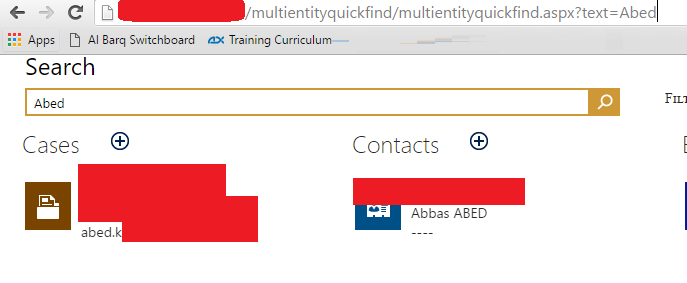
I opened the Global Search page out of CRM:

http://CRMSERVER/OrgName/multientityquickfind/multientityquickfind.aspx


By adding "?text=Abed" to the end of Global Search link 
"http://CRMSERVER/OrgName/multientityquickfind/multientityquickfind.aspx?text=Abed" 
it will passed "Abed" as a search value to the Global Search page :


Many Thanks to Debajit Dutta :)

Hope this helps!


Tuesday, May 24, 2016

CRM Online 2016 Update 1 - Create SLAs for custom entities and additional system entities


In all previous releases of Dynamics CRM, you could only create SLAs for the Case entity (record type). Now in Dynamics CRM Online 2016 Update 1 we can create SLAs for any custom entity and for any of the following system entities below:
  • All activity entities (such as Email, Task, and Appointment) except recurring appointments
  • Account
  • Contact
  • Invoice
  • Opportunity
  • Quote
  • Lead
  • Order
For more information : https://www.microsoft.com/en-us/dynamics/crm-customer-center/define-service-level-agreements-slas.aspx

Monday, May 23, 2016

Add Email Signatures - Dynamics CRM Online 2016 Update 1

We are excited to get new features for Microsoft Dynamics CRM Online 2016 Update 1!

Now CRM users can save their time on email correspondences by adding a professional touch by adding an email signature.

Go to User Setting>> Email Signature, then New :


You can add the email signature that you want, then save it, also you have an option to set it as a default signature for using it every time replies and new email messages.


Also you can create other signatures for those special cases, then select a specified signature that you created.


You can also assign a default signature to a queue. When you change the From field from a user to a queue, the default signature changes automatically.

Hope this help!

Saturday, April 23, 2016

Show Business Process Error By Using Workflow (No Code) - Dynamics CRM 2015/2016


Dynamics CRM 2015/2016 (Online & On-premises) Business Rules has been improved with the following features: 

  • Enriched business logic with- If..Else If..Else logic support
  • Ability to combine expressions using And/Or
  • Support for setting default values on the record.
  • Business Rules can now be executed on the server side.
In Dynamics CRM 2015/2016 (Online & On-premises), the scope now can be set to all forms, a specific form and the new option “Entity”:


If Business Rule is created with scope as “Entity” then the business rules will execute server side. This means that business rule also can be executed when you do updates to a record by Workflows or Plugins. 

Now I will show you a quick sample for showing Business Process Error by using business rules and workflow:

First we will be needed to add a new field on the entity, in this sample I have created a new tow options field which is called Show Message with default value "No":


Then I have created a business rule for checking the value of the field Show Message with scope as "Entity", If the field value is "Yes", then show the error message "The Amount Is less than 0!" against field Show Message :


Then create a real-time workflow for checking the value of any field, in this sample I created real-time workflow to check if the Amount is less than 0.  


Then I added two steps, one for checking the amount of Amount field if less than 0, If Yes then the other step is to set Show Message field to "Yes"


Now if I create a record with an amount which is less than 0 on the Amount field, I will get the following :

Also you can use this trick in any related Entities :)


Hope it helps!


Sunday, January 3, 2016

Arabic Language Pack For Microsoft Dynamics CRM 2016

By looking to the Language Packs list for Microsoft Dynamics CRM 2016 at Microsoft download center,you will not find Arabic Language Pack at the list.


So, don't waste your time searching for it, I'm sharing with you a direct link for downloading Arabic Language Pack For Microsoft Dynamics CRM 2016

Thursday, December 17, 2015

Microsoft Dynamics CRM Server 2016 (On-Premises) Trial Key


    • Microsoft Dynamics CRM Workgroup Server 2016 (5 CAL limit): D8W6N-FJXJF-CC3TK-6CMGV-VVBH9
    • Microsoft Dynamics CRM Server 2016 (no CAL limit): WCPQN-33442-VH2RQ-M4RKF-GXYH4

Thursday, November 26, 2015

Recalculate Rollup Fields - Dynamics CRM 2015 Programatically (Plugin)

using Microsoft.Crm.Sdk.Messages;


CalculateRollupFieldRequest CRF = new CalculateRollupFieldRequest
                    {
                       Target = new EntityReference("ParentEntityName", ParentEntityNameID),
                        FieldName = "FieldName"
                    };


 CalculateRollupFieldResponse response = (CalculateRollupFieldResponse)service.Execute(CRF);

Sunday, July 19, 2015

CRM 2013/15 On-Prem - Last access date & time for CRM users

For getting a list of all last login date and time for all CRM users on Dynamics CRM (On-Premises), run below SQL script using SQL Server Management Studio :

SELECT SU.FullName
 ,SU.DomainName
 ,SUO.LastAccessTime
FROM SystemUser SU
INNER JOIN [MSCRM_CONFIG].[dbo].[SystemUserOrganizations] SUO ON SUO.CrmUserId = SU.SystemUserId
INNER JOIN [MSCRM_CONFIG].[dbo].[SystemUserAuthentication] SUA ON SUA.UserId = SUO.UserId
ORDER BY SUO.LastAccessTime DESC


Friday, July 17, 2015

Applying same Business Rule to several forms, not all forms

We can configure Business Rules to be used on all forms for an entity, or only on one form. If you want to apply a Business Rule to several forms, and not all forms, you must create a copy of the rule for each form,you can do this by opening the Business Rule and clicking Deactivate then Save As and entering a new name for the copy of the Business Rule and select the scope and active it.


And if you select all forms as the scope of a Business Rule, the rule will be applied to all forms (Main or Quick Create forms), and you can not select the scope for a rule to apply to the Quick Create form only!


Import Data Wizard for CRM 2015 Online Update 1 now supporting XLSX file format!

The Microsoft Dynamics CRM 2015 Online Update 1 encapsulates many new great features and improvements. One of such features is improved Import Data Wizard to support XLSX file format.


Monday, July 13, 2015

List of all custom fields names & types for any Custom Entity - Dynamics CRM On-Premises

For getting a list of all custom fields names and types for any Dynamics CRM (On-Premises) custom entity, run below SQL script using SQL Server Management Studio :

USE [CRMDatabaseName]

SELECT c.NAME
 ,t.NAME
FROM syscolumns c
INNER JOIN sys.types t ON t.system_type_id = c.xtype
WHERE id = object_id('CustomEntityTableName')
 AND c.NAME LIKE 'new_%'


Note : Replace new with your solution prefix  :)
          Remove (and c.name LIKE 'new_%') for getting all of custom and system fields.

Saturday, June 27, 2015

List of supported languages by Microsoft Dynamics CRM 2015


# Language Name LCID
1 Arabic 1025
2 Basque (Basque) 1069
3 Bulgarian (Bulgaria) 1026
4 Catalan (Catalan) 1027
5 Chinese (Hong Kong S.A.R.) 3076
6 Chinese (PRC) 2052
7 Chinese (Taiwan) 1028
8 Croatian (Croatia) 1050
9 Czech 1029
10 Danish 1030
11 Dutch 1043
12 English 1033
13 Estonian (Estonia) 1061
14 Finnish 1035
15 French 1036
16 Galician (Galician) 1110
17 German 1031
18 Greek 1032
19 Hebrew 1037
20 Hindi (India) 1081
21 Hungarian 1038
22 Indonesian 1057
23 Italian 1040
24 Japanese 1041
25 Kazakh (Kazakhstan) 1087
26 Korean 1042
27 Latvian (Latvia) 1062
28 Lithuanian (Lithuania) 1063
29 Malay 1086
30 Norwegian (Bokmål) 1044
31 Polish 1045
32 Portuguese (Brazil) 1046
33 Portuguese (Portugal) 2070
34 Romanian (Romania) 1048
35 Russian 1049
36 Serbian (Cyrillic) 3098
37 Serbian (Latin, Serbia) 2074
38 Slovak (Slovakia) 1051
39 Slovenian (Slovenia) 1060
40 Spanish 3082
41 Swedish 1053
42 Thai 1054
43 Turkish 1055
44 Ukrainian (Ukraine) 1058
45 Vietnamese 1066

Unexpected Error When Replying or Forwarding an Email

Recently came across an interesting issue from one of my clients, they were working fine since around 2 years ago with no issues, using Dyn...